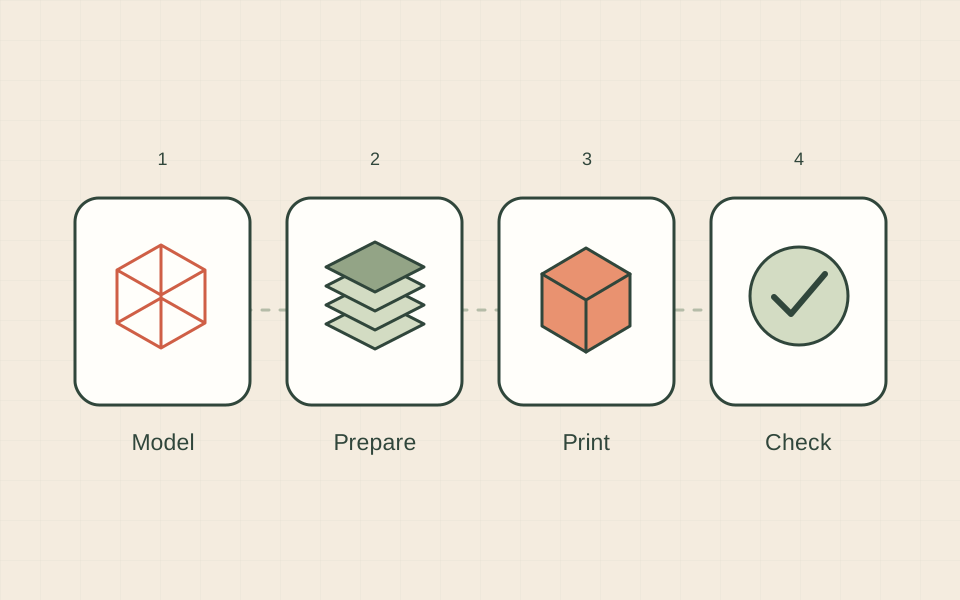
For your first filament print, choose a small model with a flat base, use the correct printer and material profile, and inspect the preview before starting. The aim is to learn the complete workflow with a manageable object. This guide explains the sequence; your machine’s manual supplies its setup, operating and maintenance instructions.
Before you start
- Complete the manufacturer’s assembly, setup and calibration instructions.
- Choose a material supported by your printer and build surface.
- Have a trusted model file and confirm its dimensions.
- Keep the printer’s instructions available and make sure you can stop a print.
- Arrange enough time to observe the start and inspect the finished result.
1. Choose a simple model
A small name tag or a basic shape is easier to inspect than a large articulated model. Look for a clear flat base and avoid a first project with many separate pieces. Read the creator’s instructions and permitted uses. Save a copy of the original model so you can return to it if an edit causes a problem.
2. Check the slicer setup
Use the slicer supported by your printer. Confirm the exact machine, nozzle and material selections. Imported project files can carry settings, so check them again after opening a shared project. Begin with the manufacturer’s normal profile for the chosen material. Avoid changing several advanced settings before you have a baseline.
3. Inspect the preview
Place the object in a sensible printing orientation and slice it. Inspect the first layer, overall shape and any areas that appear to begin in empty space. Check the estimated time and material amount. If the model is unexpectedly tiny, huge or missing details, return to preparation before exporting. A preview is a chance to catch a mistake without using material.
4. Start and observe
Export or send the file through the supported method for your printer. Only use ready-made machine instructions when they are explicitly intended for your exact setup. Confirm the intended job on the printer before starting. Watch the first layer. If the object detaches, plastic collects around the nozzle or the machine behaves unexpectedly, stop it using the supported controls and investigate.
5. Remove and inspect the print
Follow the manufacturer’s instructions for cooling and removal. Avoid forcing a stuck object or placing your hands near a moving or hot toolhead. Once it is ready to handle, compare the result with the model. Look at the underside, edges and small features. Check its size and whether it performs the simple job you intended.
Record a repeatable result
Save the editable project as well as the exported file. Note the material, profile, model version and one observation. If the first layer failed, use the first-layer checklist before trying a different complex model. If the result worked, repeat it once or change one feature. That gives you a useful reference for future experiments instead of a folder of unexplained files.
Sources & further reading
We use AI to help prepare our guides. Check the sources and follow the instructions for your specific printer and materials.